Brand Pulse
What every Brand Pulse card and tile means, how each number is worked out, which ones follow the date picker, and why a number can look off.
Brand Pulse is a one-page health check for your brand. It answers questions like “Are we posting what we planned?”, “Is a content pillar going quiet?” and “Is our content passing its checks?”.
Open it from the sidebar: Analyze → Brand Pulse, or go straight to Brand Pulse.
Unlike Reports, which looks at one channel at a time, Brand Pulse looks across your whole brand: every channel, plus the blogs, emails and designs your team publishes.
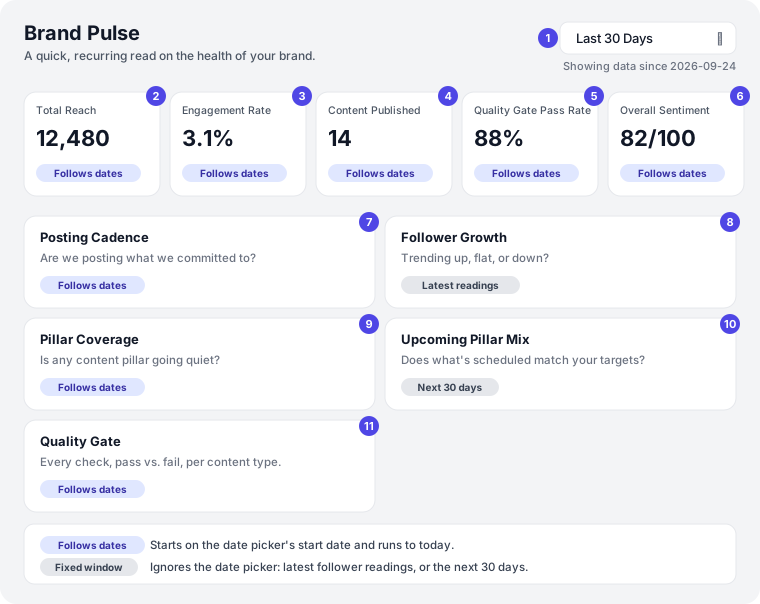
| # | Card or tile | Follows the date picker? |
|---|---|---|
| 1 | Date picker | — |
| 2 | Total Reach | Yes |
| 3 | Engagement Rate | Yes |
| 4 | Content Published | Yes |
| 5 | Quality Gate Pass Rate | Yes |
| 6 | Overall Sentiment | Yes |
| 7 | Posting Cadence | Yes |
| 8 | Follower Growth | No. Uses the latest daily follower readings |
| 9 | Pillar Coverage | Yes |
| 10 | Upcoming Pillar Mix | No. Always the next 30 days |
| 11 | Quality Gate | Yes |
Quick start (5 minutes)
- Open Brand Pulse.
- Leave the dates on Last 30 Days. Under the picker, check Showing data from … to ….
- Read the top row. A green ↑ or red ↓ shows the change from the period before.
- In Posting Cadence, look for schedules marked Low or Gap.
- In Pillar Coverage, look at the pillars at the top. They’re the least covered.
- In Upcoming Pillar Mix, look for Missing pillars and plan content for them.
Example: a café sees Posting Cadence at 60% Low for Weekday reels, and Community marked Gap in Pillar Coverage. It plans two community reels for next week.
The date picker
The date picker at the top right starts on Last 30 Days. Under it, Showing data from 2026-09-25 to 2026-10-24 (for example) shows the dates in use.
Every tile that follows the date picker uses both the start and the end date:
| Option | What Brand Pulse shows |
|---|---|
| Last 7 Days | The last 7 days, including today |
| Last 30 Days | The last 30 days, including today |
| Last 90 Days | The last 90 days, including today |
| This Month | The 1st of this month up to now |
| Last Month | The 1st to the last day of last month |
| Custom Range | Your From Date to your To Date |
The comparison period. The ↑ and ↓ changes on the top row compare your dates with the same number of days just before them.
Example: on October 24, Last Month shows September 1 to September 30, and compares it with the 30 days before September 1.
The date picker resets to Last 30 Days when you leave the page.
Total Reach
What it is: the total Reach of every post published in your dates, across all your active channels, added up.
- Reach only comes from your Meta CSV uploads, so in practice this is Instagram Reach. Other platforms don’t share Reach publicly. See Upload a Meta CSV Report.
- Without a CSV that covers your dates, Total Reach shows 0.
- The ↑ or ↓ compares it with the same number of days before.
- The small line splits your dates into 8 equal parts and shows the Reach in each.
Example: your Meta CSV gives 5 posts in your dates a Reach of 2,000 each. Total Reach shows 10,000.
Engagement Rate
What it is: the average engagement rate of every post published in your dates, across all your active channels.
- Each post’s rate is worked out the same way as in Reports. With Reach from a Meta CSV, it uses Reach. Without Reach, it uses followers. See How Metrics Are Calculated.
- Posts without a rate are left out.
- The ↑ or ↓ is a relative change. A rate going from 4.0% to 5.0% shows ↑ 25%.
The small line uses a different formula. For each of 8 equal parts of your dates, it adds up likes, comments, shares and saves and divides them by Reach. Without Reach from a CSV, the line stays flat at 0. So the line can disagree with the big number above it.
This number can differ from Reports. Reports shows one channel, Brand Pulse averages every channel together.
Content Published
What it is: how many pieces your team published from Orsa in your dates. The line under the number splits it, like 2 blog · 1 email · 11 design.
What counts:
- Designs: once a social post of the design has been sent to a platform from Orsa. A design counts once, on the day it was first sent. Being approved isn’t enough.
- Blogs: blogs with the status Published, counted on their Scheduled At date, or on their publish date (or last update) when that’s empty.
- Marketing emails: emails with the status Published, counted on their Scheduled Date, or on their last update when that’s empty.
Posts you publish outside Orsa aren’t counted.
The ↑ or ↓ compares it with the same number of days before.
Quality Gate Pass Rate
What it is: the share of Quality Gate checks that passed on your published content, with checks run in your dates.
It’s the same number as overall on the Quality Gate tile. It has no ↑ or ↓ change. The small line shows how the pass rate moved across your dates. In the line, as on the tile, an item that passed with warnings counts as not passed.
Overall Sentiment
What it is: a score from 0 to 100 for how positive people are about your brand, in your dates.
- Green at 60 or more, amber from 40 to 59, red below 40.
- Under the score: how many comments and reviews it’s based on, and how many are still waiting to be read by AI (pending).
- No data yet means there’s nothing to score in your dates.
Where the score comes from
- Google reviews for the locations on your brand’s Info tab. Each review’s stars give a score: 5★ = 100, 4★ = 75, 3★ = 50, 2★ = 25, 1★ = 0. Reviews are refreshed once a day. See Brand Info, Locations and Google Reviews.
- Comments on your posts, scored by AI. Comments aren’t being collected at the moment, so today the score comes from your Google reviews. The card shows 0 comments.
The two are blended by how many of each there are.
Example: in the last 30 days, a dental clinic got eight 5★ reviews and two 3★ reviews. The score is (8 × 100 + 2 × 50) ÷ 10 = 90/100.
Posting Cadence
What it is: for each active content schedule, how many of its time slots since the start date got a post.
Each row shows the schedule’s name, the share of slots filled, a label, and a line like 3/4 posted · 1 missed spot.
| Label | Slots filled |
|---|---|
| Strong | 95% or more |
| Good | 85% to 94% |
| OK | 70% to 84% |
| Low | 50% to 69% |
| Gap | Below 50% |
When a slot counts as filled: a design linked to that schedule has a post scheduled or sent within 12 hours of the slot. Draft, failed or cancelled posts don’t count. For a Blog Header schedule, a blog scheduled within 12 hours fills it. See When a slot counts as filled.
Not tracked yet means the schedule has no content type, so it can’t be measured. Edit the schedule and choose a Content Type.
No active posting schedules configured. means your brand has no active schedules. See Content Channels and Schedules.
Example: a gym’s Weekday reels schedule had 20 slots in the last 30 days. 17 had a linked, scheduled design. It shows 85% Good, 17/20 posted · 3 missed spots.
Follower Growth
What it is: each of your active channels’ follower count and how it changed.
This tile ignores the date picker. It always uses the latest readings.
- Orsa reads each account’s follower count once a day.
- Each row shows the platform and username, the current followers, and the change since the reading before, with ↑, ↓ or →. That’s usually the change over about one day. Two channels on the same platform get their own rows and lines.
- The chart shows the last 12 readings, so roughly the last 12 days.
- Not enough historical data yet means the account has fewer than two readings. Check back after two daily updates.
The tile is labelled Daily.
If an account’s profile is restricted, Orsa can’t read it, and no new reading is added. See How Discover Updates.
Pillar Coverage
What it is: whether each content pillar gets its fair share of what you publish, compared with the pillar’s Target coverage.
It counts the same published designs, blogs and emails as Content Published, in your dates. A piece counts toward a pillar when its linked content idea has one of that pillar’s sub-pillars. If the sub-pillar has an activation schedule, it must have been active at the time. See Content Pillars.
Each row shows:
- Last covered: the most recent piece ever published for that pillar, even before your dates. never means it has never been covered.
- target: the pillar’s target coverage, like target 50%.
- How many pieces it got.
- A label, comparing its pieces with its target share of everything published:
| Label | Pieces compared with its target |
|---|---|
| Strong | 130% or more |
| Good | 90% to 129% |
| OK | 50% to 89% |
| Low | 20% to 49% |
| Gap | Below 20% |
The least-covered pillars are at the top.
Example: a florist published 10 pieces linked to pillars. Weddings has a 50% target, so its fair share is 5. It got 3, which is 60% of target: OK.
A piece linked to two pillars counts toward both pillars, but only once in the total.
Social posts you publish outside Orsa don’t count here.
Upcoming Pillar Mix
What it is: whether the content already planned for the next 30 days gives each pillar its target share.
This tile ignores the date picker. It always looks at the next 30 days.
- Planned content: designs with a social post scheduled, and blogs and marketing emails dated in the next 30 days. Drafts and archived blogs or emails don’t count, even with a date. Each piece counts toward a pillar through its linked idea’s sub-pillars.
- Target: the total slots on all your active schedules in the next 30 days, split by each pillar’s target coverage.
Each row shows N scheduled pieces, target N, N% of target, and a label:
- Missing: 15% or more under target.
- On Track: within 15% of target.
- Overbooked: 15% or more over target.
No content scheduled in this window. means nothing in the next 30 days is linked to a pillar yet.
Example: a salon’s schedules have 12 slots in the next 30 days. Hair care has a 50% target, so its target is 6. Three pieces are planned: 50% of target, Missing.
The pillar weights on a schedule aren’t used here. Only each pillar’s own target coverage is. See Pillars and weights on a schedule.
Quality Gate
What it is: how often your published content passes each Quality Gate check.
- One row per content type that has checks: Design, Blog, Transcript or Marketing Email.
- Only published content counts: designs sent to a platform, and blogs, transcripts and emails with the status Published.
- For each item, only its latest check run since the start date counts.
- The big number on the right is the overall pass rate.
Each check is a small dot with a short code. Hover over it to see, for example, Off-palette color — 9/10 passed.
| Code | Check |
|---|---|
| PBK | Playbook rule violation |
| PAL | Off-palette color |
| FNT | Off-brand font |
| CTA | Missing CTA / disclosure |
| TOP | Topic repeat |
| FMT | Platform format spec |
| FAC | Factual / compliance flag |
| PIL | Pillar coverage |
Colors: green at 90% or more, amber from 70% to 89%, red below 70%. A check that gave a warning counts as not passed.
No quality gate checks on published content in this window. means nothing published had a check run in your dates. See Quality Gate.
Why Brand Pulse numbers can look off
- Check the dates. Showing data from … to … under the picker shows the exact window every date-based tile uses.
- Two tiles ignore the dates. Follower Growth uses the latest readings, and Upcoming Pillar Mix always looks at the next 30 days.
- Follower Growth is a daily change. It compares the two latest daily readings, so the change is usually over about one day.
- Total Reach is 0. Reach only comes from a Meta CSV. See Upload a Meta CSV Report.
- The Engagement Rate line disagrees with the big number. They use different formulas. See Engagement Rate.
- Engagement Rate differs from Reports. Brand Pulse averages all your channels. Reports shows one.
- Sentiment only reflects Google reviews. Comments aren’t being collected at the moment. With no reviews in your dates, it says No data yet.
- Content Published or Pillar Coverage seems low. Only content published from Orsa counts. Blogs and emails need the status Published. Pieces need a linked idea with sub-pillars to count toward a pillar.
- Posting Cadence shows a missed slot you filled. The design must be linked to the schedule and scheduled within 12 hours of the slot.
- Numbers aren’t live. Posts, Reach and followers update once a day. See How Discover Updates.
Ideas for using Brand Pulse
A Monday check-in. Open Brand Pulse with Last 7 Days every Monday.
Example: a boutique sees Posting Cadence Low for Story Fridays. Two designs weren’t linked to the schedule. They link them and plan next Friday.
Balance your pillars before the month starts. Check Upcoming Pillar Mix in the last week of the month.
Example: a gym’s Nutrition pillar shows Missing, 1 piece against a target of 4. It adds three nutrition ideas to the calendar.
Spot a quiet pillar. Use Last 90 Days and read Pillar Coverage.
Example: a dentist’s Kids’ care pillar says Last covered never and Gap. They plan a back-to-school post.
Track review sentiment. Watch Overall Sentiment after a busy season.
Example: a restaurant’s score drops from 88 to 71 in December. They read the new reviews and find slow-service complaints on Saturdays.
Tips for the best results
- Read Showing data from … to …. It tells you the exact dates of every date-based tile.
- Upload a Meta CSV for Instagram. Without it, Total Reach is 0 and the Engagement Rate line is flat.
- Link designs to schedules. Posting Cadence only counts linked designs.
- Link content to ideas with sub-pillars. Pillar Coverage and Upcoming Pillar Mix only count pieces with a pillar.
- Set target coverage on every pillar. The pillar tiles compare against it.
- Give every schedule a content type. Otherwise it shows Not tracked yet.
- Add your locations from Google Maps. That’s what feeds Overall Sentiment.
Common questions
Why didn’t Follower Growth change when I changed the dates? Follower Growth ignores the date picker. It uses the latest readings.
Why is Total Reach 0? Reach only comes from a Meta CSV, and there’s none covering your dates. See Upload a Meta CSV Report.
Why does Overall Sentiment say No data yet? There are no Google reviews in your dates. Add your locations from Google Maps, or pick a longer range. Comments aren’t being collected at the moment.
Why does a schedule say Not tracked yet? It has no content type. Edit the schedule and pick one.
Why does my pillar say Gap when I post about it all the time? Only content published from Orsa counts, and only when it’s linked to an idea with that pillar’s sub-pillars. Posts published outside Orsa don’t count.
Why doesn’t Quality Gate Pass Rate show a change? It doesn’t compare with the period before. Only the other top-row cards do.
Which channels are included? Every channel on your brand with an account handle, on any platform, including inactive ones.
Can I see Brand Pulse for one channel only? No. Brand Pulse covers the whole brand. For one channel, use Reports.
Can I export Brand Pulse? No. There’s no export.
Was this helpful? Tell us what worked or what was missing athello@orsa.social.