Using the Design Editor
Find your way around the design editor, set sizes, work with pages, and learn how saving, Exit and locked designs work.
The design editor is where you make your visuals: social posts, carousels, stories, banners and more. You add text, photos, shapes and your brand’s colors and logos to a canvas, and it saves for you as you go.
Open it by clicking any card on the Designs tab of the Create page. To start a new one, see The Create Page.
The editor fills the whole screen. It has three main areas: the side tabs on the left, the canvas in the middle, and the pages strip along the bottom.
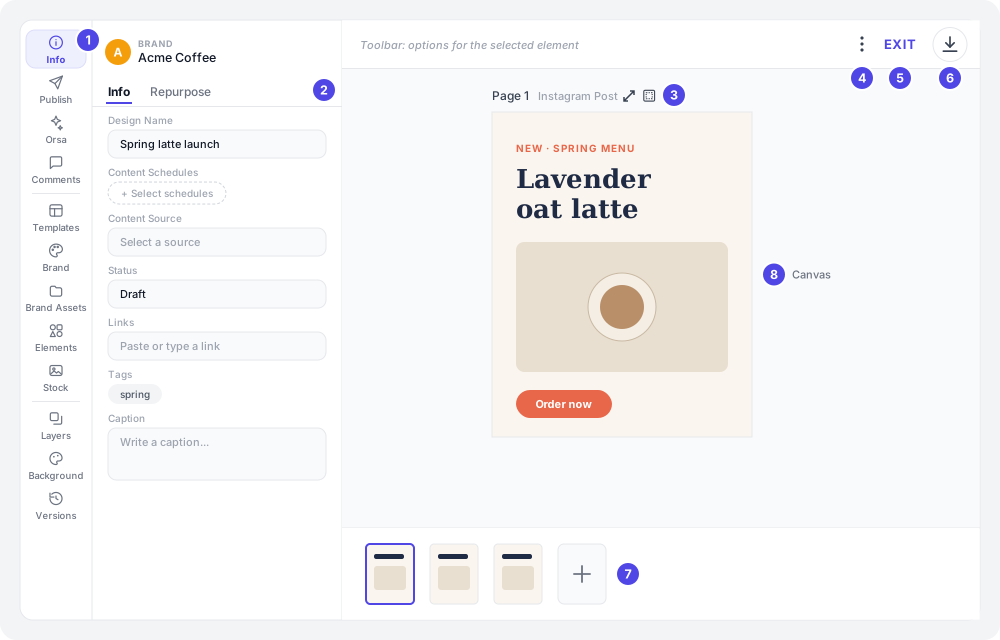
- Side tabs: pick what the panel next to them shows.
- Panel: the tools for the tab you picked. Here, Info.
- Page label: the page number, its size, and the resize button.
- ⋮ menu: Copy Link, Share, Save as template and Delete Design.
- Exit: saves and closes the editor.
- Download: exports your design.
- Pages strip: every page in the design. Click + to add one.
- Canvas: click anything on the page to select it and edit it.
Quick start (5 minutes)
- Open a design from the Create page.
- Click the resize button next to Page 1 above the canvas. Under Platform & Size, pick a size, like Instagram Post (1080x1350).
- Click Brand in the side tabs and click Add a heading (or one of your text styles). A text box appears on the page.
- Double-click the text and type your headline.
- Click Stock or Brand Assets and click a photo to add it.
- Wait a few seconds. The design saves by itself.
- Click Exit when you’re done.
Example: a florist makes a Mother’s Day post. They pick Instagram Post (1080x1350), add the heading “Mother’s Day bouquets are here”, drop in a photo from Brand Assets, and click Exit.
The side tabs
The side tabs are grouped into three blocks.
About this design
| Tab | What it’s for |
|---|---|
| Info | The design’s name, status, caption, tags and more. See The Info panel. |
| Publish | Post the design to your social accounts or schedule it. See Scheduling a Post. |
| Performance | How the published post did. Only shows once the design is matched to a published post. See Matching Designs to Posts. |
| Orsa AI | Ask Orsa AI to change this design or add new slides. See Orsa AI in the Editors. |
| Comments | Talk about the design with your team. A red dot means there are comments you haven’t read. See Comments and Mentions. |
| Transcript | The script this design was made from. Only shows when the design is linked to a transcript, for example as its Content Source. |
Adding things to your design
| Tab | What it’s for |
|---|---|
| Templates | Start from a ready-made layout or one of your brand’s own templates. |
| Brand | Add text in your brand’s styles, and your brand colors and logos. |
| Brand Assets | Photos, videos and files from your brand’s asset library. |
| Elements | Shapes, lines and other graphics, plus the Favourites you saved. |
| Stock | Stock Photos and Videos. |
| Edit Objects | Only shows while you’re editing objects found in a photo. See AI Image Tools. |
These are explained in Design Templates and Your Brand Kit.
Arranging and history
| Tab | What it’s for |
|---|---|
| Layers | Every item on the current page, top layer first. See Layers and background. |
| Background | The page’s background color or image. |
| Versions | Earlier saved versions of the design. See Design Versions and Collaboration. |
When the editor opens, it shows the Info panel. If someone left you a comment you haven’t read, or you opened a link to a comment, it shows Comments instead.
Editing on the canvas
- Select an item by clicking it. The toolbar at the top changes to show options for that item, like font, color, size or crop.
- Edit text by double-clicking it.
- Move an item by dragging it. Resize it by dragging its corners.
- Delete the selected item with the trash button in the toolbar, or the Delete key.
- Save an item for later with the star button in the toolbar (Add to favourites). It shows up under Elements → Favourites.
- Undo and redo with the arrows at the left of the toolbar.
- Zoom with the zoom buttons at the bottom right of the canvas.
Handy shortcuts (use Cmd on a Mac, Ctrl on Windows):
| Shortcut | What it does |
|---|---|
| Cmd/Ctrl + Z | Undo |
| Cmd/Ctrl + Shift + Z, or Cmd/Ctrl + Y | Redo |
| Cmd/Ctrl + D | Duplicate the selected item |
| Delete or Backspace | Delete the selected item |
For text, the toolbar also has a Capitalize Each Word button. It turns “spring menu is here” into “Spring Menu Is Here” in one click.
Choosing a size
Every new design starts as a 1080 × 1080 square. To change it:
- Click the resize button (two diagonal arrows) next to the page label above the canvas. Its tooltip says Resize this slide.
- Under Platform & Size, pick a size. The page resizes right away, and its contents scale to fit.
- To give every page that size, click Apply to all pages.
The page label shows the size’s name, like Page 1 Instagram Post. A page whose size doesn’t match any option just shows Page 1, and Custom is picked when you open the resize button.
The sizes you can pick:
| Option | Size (pixels) |
|---|---|
| Instagram Post | 1080 × 1350 |
| Instagram Story | 1080 × 1920 |
| Instagram Reel | 1080 × 1920 |
| Facebook Post | 1200 × 630 |
| Facebook Cover | 820 × 312 |
| Twitter Post | 1200 × 675 |
| Twitter Header | 1500 × 500 |
| LinkedIn Post | 1200 × 627 |
| LinkedIn Banner | 1584 × 396 |
| Pinterest Pin | 1000 × 1500 |
| TikTok Video | 1080 × 1920 |
| YouTube Video | 1920 × 1080 |
| YouTube Thumbnail | 1280 × 720 |
| YouTube Banner | 2560 × 1440 |
| Email Newsletter | 600 × 800 |
| Blog Header | 1200 × 628 |
| Case Study | 595 × 842 |
| Guide | 595 × 842 |
| Document A4 | 595 × 842 |
| Presentation Slide 16:9 | 1920 × 1080 |
| Custom | Any size you type |
Using a custom size
- Open the resize button and pick Custom.
- Type the Width and Height.
- Pick the Units: px, cm or in.
- Leave Scale content when resizing ticked to shrink or grow your content with the page. Untick it to keep items at their current size.
- Click Apply size.
Example: a cafe needs a 4 × 6 inch flyer. They pick Custom, set Units to in, type 4 and 6, and click Apply size.
Each page can have its own size
Sizes are set page by page. Resizing one page doesn’t change the others, unless you click Apply to all pages. This lets you keep, say, a square post and a story version of it in the same design.
Working with pages
A design can have many pages. Use pages for carousel slides, or for different versions of the same post. The pages strip along the bottom shows them all.
- Add a page: click + at the end of the pages strip.
- Go to a page: click it in the strip.
- Duplicate or remove a page: open the page’s menu in the strip and pick Duplicate page or Remove page. Add page there adds a new page right after it.
- Reorder pages: drag a page to a new spot in the strip.
Example: a gym makes a 5-slide carousel of “5 stretches before a run”. They design slide 1, use Duplicate page four times, then change the photo and text on each copy so every slide matches.
Layers and background
The Layers tab lists every item on the page you’re on, with the top layer first.
- Click an item in the list to select it on the canvas. This helps when an item is hidden behind others.
- Drag an item up or down the list to bring it in front of, or behind, other items.
The Background tab sets the page’s background color or image.
How saving works
You never need to press save. The editor saves your design by itself about 7 seconds after you stop making changes. Each save also updates the preview on the design’s card on the Create page.
If a save fails, you’ll see “Error while saving the design”. Keep the editor open and make a small change to try again, or check your internet connection.
Exit
Click Exit at the top right when you’re done. The button shows Saving.. while it:
- Saves any changes that haven’t been saved yet.
- Saves a version of the design, so you can go back to it later from Versions. A version is only saved if you changed something.
Then it takes you back to the Create page. If you opened the design from Organize, you stay where you were.
Closing the browser tab also keeps your work, as long as about 7 seconds have passed since your last change. But only Exit saves a version. See Design Versions and Collaboration.
The Info panel
The Info tab shows your brand at the top, then up to three tabs: Info, Match (once the design is published or sent from Orsa), and Repurpose.
The Info tab holds the design’s details. Changes save as soon as you click away from a field.
| Field | What it’s for |
|---|---|
| Design Name | The name shown on the card. Regular search looks here. |
| Content Schedules | Which of your brand’s posting schedules this design is for. Click Select schedules. If there are none, click Set one up. See Content Channels and Schedules. |
| Content Source | What the design was made from: an idea, transcript, document, blog, video or marketing email. |
| Status | Where the design is in your process, like Draft, Review or Approved. If a Quality Gate check has run, its result shows next to Status. See Quality Gate. |
| Links | Links that go with the design. Paste one and add it. |
| Tags | Tags to group and filter your content. |
| Caption | The text that goes with the post. If you linked content schedules, it shows a character limit for the strictest platform. |
| Approvers | Who needs to approve the design. Click Request Review to ask them. See Reviews and Approvals. |
Example: Design Name “Spring latte launch”, Content Schedules “Weekday posts · Instagram Post · Instagram”, Status Review, tags spring and new-menu, caption “Lavender oat latte is back for spring 💜 Order ahead in the app.”
The Repurpose tab shows the design’s lineage: what it was made from and where it’s been used. Designs can’t be repurposed into other content. See Repurpose and Similar Content. The Match tab shows which published post this design became. See Matching Designs to Posts.
The ⋮ menu
The ⋮ button at the top right has:
- Copy Link: copies a link to this design for your teammates.
- Share: create a link for people outside your team. See Sharing with Share Links.
- Save as template: adds the design to your brand’s templates. It changes to Remove as template for designs that are already templates. See Design Templates and Your Brand Kit.
- Delete Design: asks “Delete Design?”, then deletes it for good. This can’t be undone.
Locked designs
A design locks once it has a social post scheduled, being sent or published. This keeps the post you scheduled the same as the design people see.
When a design is locked:
- A banner at the top says what’s happening, like “Scheduled to Instagram — editing is locked” or “Published to Instagram — editing is locked”, with the date and time.
- The canvas, the pages strip and the Info fields are read-only.
- Only the Info, Publish, Performance and Comments tabs show, and the editor opens on Publish.
- Delete Design is greyed out.
To edit again, cancel the scheduled post. A design whose post is already published stays locked. To make changes, Duplicate it from its card on the Create page and edit the copy. Scheduling and cancelling are covered in Scheduling a Post and Post Status and Failures.
Email deliveries don’t lock a design.
More about the editor
These parts of the editor have their own guides:
- Design Templates and Your Brand Kit: the Templates, Brand, Brand Assets, Elements and Stock tabs.
- Exporting Designs: downloading as PNG, JPEG, PDF, video and more.
- Design Versions and Collaboration: going back to an earlier version, and working on a design with your team.
- AI Image Tools: removing backgrounds and editing objects in a photo.
Ideas for using the design editor
One design, every platform.
A yoga studio announces a new class. Page 1 is an Instagram Post, page 2 an Instagram Story, and page 3 a LinkedIn Post. They design page 1, duplicate it twice, and resize each copy with the resize button.
A carousel that tells a story.
A bakery posts “How our sourdough is made” in 6 slides. Each step gets its own page. They use Layers to tuck the logo behind the photo on the last slide.
A printed flyer.
A bookshop needs an A4 event poster. They pick Document A4, design it, and download it as a PDF. See Exporting Designs.
Tips for the best results
- Pick the size first. Resizing later scales your content, but text and photos may need a nudge afterwards. Starting at the right size saves time.
- Fill in your Brand Kit before you design. The Brand tab can only offer the colors, fonts and logos your brand has. See Brand Kit.
- Name the design right away in Info → Design Name. “Untitled Design” is hard to find later.
- Use Exit instead of closing the tab. Exit makes a version you can go back to. Closing the tab doesn’t.
- Give it a few seconds after your last change before you close the tab or switch away, so the autosave can finish.
- Duplicate pages, not designs, for a carousel. Every slide stays in one design and posts together.
Common questions
My changes didn’t save. The editor saves about 7 seconds after your last change. If you closed the tab sooner, the last few seconds may be lost. Use Exit to save right away. If you see “Error while saving the design”, check your connection and make another small change.
I can’t click anything on the canvas. The design is locked because it has a social post scheduled, being sent or published. Look for the banner at the top. See Locked designs.
I saw “Design is locked by a scheduled post”. Someone scheduled a post for this design while you had it open. The editor switches to read-only, and your latest change wasn’t saved.
Where’s the Upload button? Open the Brand Assets tab and click Upload Panel. Files are saved to your brand’s asset library, so you can reuse them in other designs. See Design Templates and Your Brand Kit.
Where do I add text? Open the Brand tab. Click a text style, or Add a heading, Add a subheading or Add body text if your brand has no text styles set up yet.
Why don’t I see the Performance or Transcript tab? They only show when they have something to show. Performance needs the design to be matched to a published post. Transcript needs the design to be linked to a transcript.
I resized one page and the others didn’t change. That’s expected: each page has its own size. Click Apply to all pages under Platform & Size to resize them all.
Exit didn’t save a version. A version is only saved when something changed since you opened the design. It also isn’t saved for a locked design.
The page label shows no size name. The page’s size doesn’t match any named option. New designs start at 1080 × 1080, which isn’t one of them. Pick a size under Platform & Size to name it.
Was this helpful? Tell us what worked or what was missing athello@orsa.social.